

Set up QAI in 30 minutes
Who this is for: buyers and networks who want call outcomes — sale, not interested, spam — scored automatically from the transcript instead of read off a duration column. What you’ll need: QAI already enabled on your organisation by Moja, a full Moja account with Admin access, and call recording left on for the traffic you want analysed. Time: about 30 minutes after QAI has been enabled for your account.
The path is: account readiness → Control traffic selection → profile analysis (dispositions and questions) → first results.
What you’ll accomplish
Section titled “What you’ll accomplish”- Confirm QAI is enabled on your Moja account
- Create an enabled Control profile attached to the right traffic, with a sample rate
- Configure three or four core dispositions and their questions on that profile
- See transcripts and QAI results on new completed calls
Step 0 — Prerequisites
Section titled “Step 0 — Prerequisites”-
Account. Confirm QAI is enabled for your organisation. Only Moja support or your account team can turn this on; customers cannot flip it themselves today.
-
Access. Sign in with a full Moja account as an Admin. Publisher-only views do not include QAI.
-
Recordings. Confirm the campaign, buyer, and target path does not disable recording. Recording can be switched off above the campaign.
-
Navigation. Open QAI Analysis → Control. If Control is missing but you were told QAI is on, contact support rather than continuing.
Expected result: the Control page loads and you can create a profile.
Validate on new completed calls. Turning Control on does not backfill history.
Short checklist version: QAI prerequisites: account, Control, and recordings.
Step 1 — Create a Control profile and attach traffic
Section titled “Step 1 — Create a Control profile and attach traffic”5–10 minutes.
-
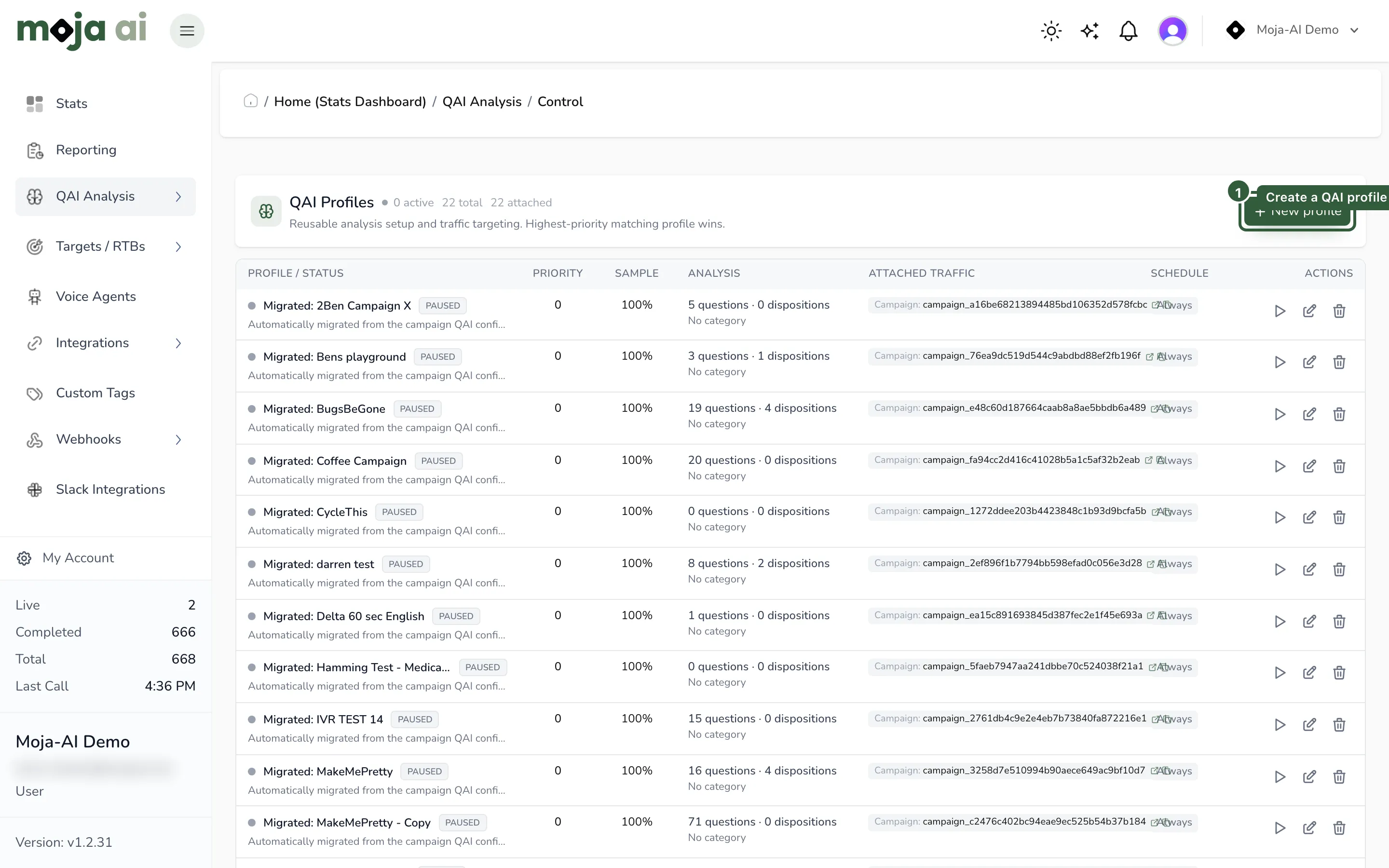
Go to QAI Analysis → Control.
-
Select New profile, or edit an existing one.
-
Name it clearly — for example, “Inbound Sales – QAI”.
-
Attach entities: campaigns, and optionally publisher, buyer, target, RTB formula, or RTB group.
-
Set Enabled to on.
-
Set the sample rate. Use 100% while validating and lower it later to control cost.
-
Optionally set a schedule window and a profile priority — which profile owns a call when several match. This is not disposition priority.
-
Save.
Expected result: at least one enabled profile with at least one attachment. Zero profiles, or a profile with no entities, means QAI processes nothing even on an enabled account.
Step 2 — Plan your dispositions
Section titled “Step 2 — Plan your dispositions”5 minutes, away from the portal.
Start with the Core Four, which fit most businesses:
| Disposition | Priority | Means |
|---|---|---|
| Sale / Conversion | 100 | Completed purchase or booking |
| Customer Service | 60 | Existing customer inquiry, if applicable |
| Not Interested | 50 | Customer declined |
| Spam / Scam | 10 | Invalid or fraudulent call |
Write down what each outcome means for your business before you configure a single question. Questions written against a vague definition produce labels you cannot act on.
Step 3 — Add analysis on the profile
Section titled “Step 3 — Add analysis on the profile”10 minutes.
Configure analysis on the Control profile you just created — not as a campaign-only leftover.
-
Open the profile and go to Analysis setup.
-
Choose a QAI category if prompted.
-
Add your first disposition, with its priority, questions, and match rules.
-
Repeat for the supporting dispositions.
Example — a “Sale” disposition
- Priority: 100
- Match criteria: start slightly flexible, for example most questions, then tighten once you have read real answers
- Questions, each single-purpose:
- Did the customer agree to purchase or book?
- Was payment or enrolment information collected?
- Did the agent confirm the order or appointment details?
Supporting dispositions
- Not Interested, priority 50 — questions about an explicit decline or no need
- Spam / Scam, priority 10 — wrong number, silence farm, obvious fraud patterns
Expected result: the profile lists your dispositions with distinct priorities and at least two questions each.
Step 4 — Verify it works
Section titled “Step 4 — Verify it works”5 minutes plus real calls.
-
Place or wait for new calls that match the attached traffic, with real talk time.
-
Open call details for those completed calls.
-
Confirm a transcript appears first.
-
Then confirm the QAI questions and disposition labels.
Success looks like: at 100% sample rate, eligible completed calls carry a transcript, the questions return sensible answers drawn from real speech, and the highest-value matching disposition wins.
Step 5 — Refine, ongoing
Section titled “Step 5 — Refine, ongoing”| What you see | What to change |
|---|---|
| False positives | Make questions more specific; raise match strictness carefully |
| A disposition never triggers | Confirm a transcript exists first, then loosen match criteria or rephrase to match how people actually speak |
| The wrong disposition wins | Adjust disposition priorities — the higher number wins among matching labels |
Two priority systems, easily confused
Section titled “Two priority systems, easily confused”| System | Where | Decides |
|---|---|---|
| Control profile priority | QAI Analysis → Control | Which profile owns the call when several profiles match |
| Disposition priority | Profile → Analysis setup | Which label wins when several dispositions match inside that profile |
Full treatment: Understanding QAI priorities.
Troubleshooting
Section titled “Troubleshooting”| Symptom | Likely cause | Fix |
|---|---|---|
| Nothing is transcribed at all | Dispositions built on the campaign only, with no enabled Control profile | Re-do step 1 |
| Some calls transcribed, most not | Sample rate set low while testing | Set 100% until validated |
| No transcript on any call | Recording disabled above the campaign, or the call never connected | QAI prerequisites |
| Historical calls have no analysis | Control does not backfill | Validate on new completed calls |
| Labels look wrong | Priority conflict between profiles, or between dispositions | Understanding QAI priorities |
| Control is missing from the navigation | QAI is not actually enabled on the organisation | Contact support |
Common first-time mistakes
Section titled “Common first-time mistakes”- Building campaign dispositions and never creating an enabled Control profile
- Leaving the sample rate very low while “testing if QAI works”
- Debugging question wording when no transcript exists yet
- Expecting historical calls to backfill the moment Control is saved
- Confusing Control priority with disposition priority
Related
Section titled “Related”- QAI prerequisites: account, Control, and recordings
- Setting up QAI: best practices
- Understanding QAI priorities
- QAI templates by industry vertical
- Troubleshooting common QAI issues
- Call log column dictionary
Last reviewed: August 2026.